PDF files are useful because they preserve the appearance of a document across different devices and operating systems. But working with PDFs can become frustrating when you need to reduce a large file, combine several documents, convert a PDF to another format, or make a quick edit.
That is where free online PDF tools can help.
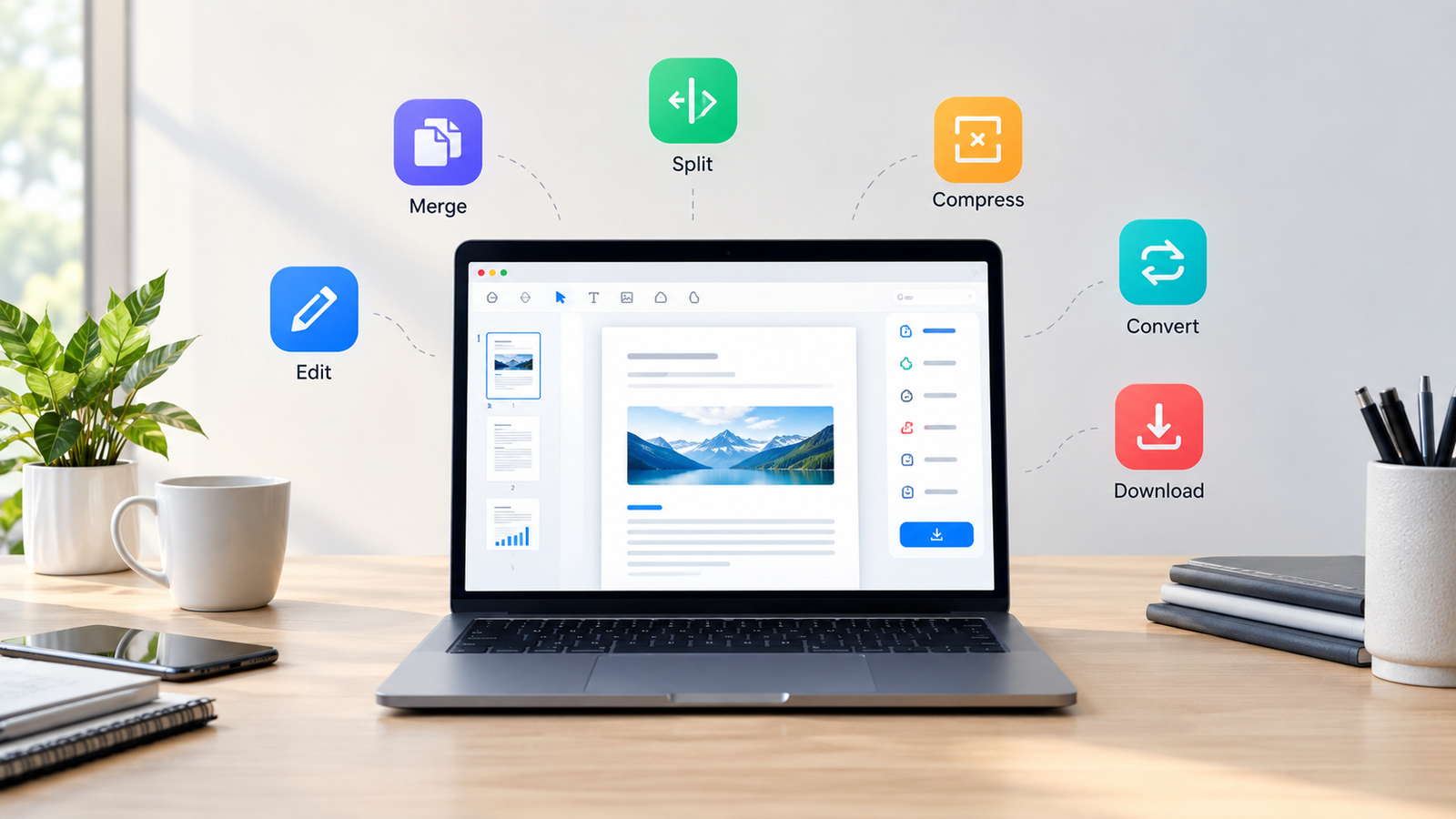
Instead of installing a large desktop application for a single task, you can often use a browser-based PDF utility, upload your document, complete the required operation, and download the result.
In this guide, we will look at the most useful types of free online PDF tools, what they are good for, how to choose one, and what you should consider before uploading a document.
What Are Free Online PDF Tools?
Free online PDF tools are web-based utilities that let you perform common tasks on PDF files through a browser.
Depending on the service, you may be able to merge several PDFs, split pages, compress a large document, convert a PDF into another file format, edit certain elements, or extract pages and images.
One of the main advantages is convenience. You generally do not need to install specialized PDF software just to perform a single operation.
For example, imagine that you have five PDF files containing different sections of a school project. Instead of opening a full desktop PDF application, you could use an online PDF merger to combine the documents into one file.
The same principle applies to many other everyday PDF problems.
What Can You Do With Online PDF Tools?
Different services offer different features, but several PDF operations are particularly useful.
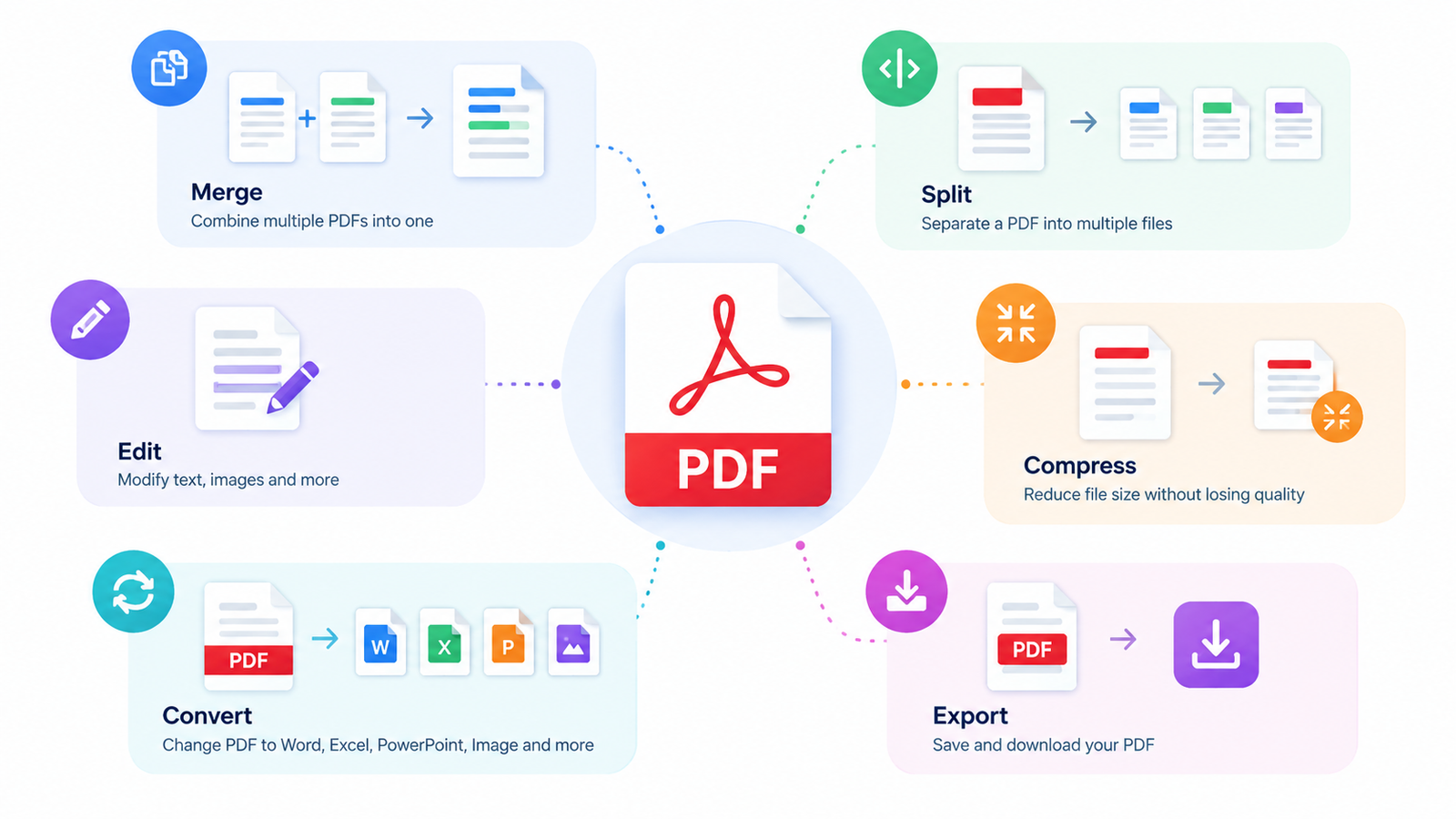
Merge Multiple PDF Files
A PDF merger combines two or more PDF documents into a single file.
This can be useful when:
- You need to submit several documents as one file.
- You want to combine research papers.
- You are organizing invoices or receipts.
- You want to create one portfolio from several PDF documents.
- You need to combine separate sections of a report.
Before merging files, check their order carefully. Some tools allow you to rearrange pages before creating the final document.
Split a PDF Into Separate Files
Splitting does the opposite of merging.
Instead of combining documents, a PDF splitter lets you extract selected pages or divide a larger PDF into multiple files.
For example, a 50-page document might contain only five pages that you actually need. Rather than sending the entire document, you can extract those pages into a separate PDF.
This can be particularly useful for reports, textbooks, application documents, and scanned records.
Compress a PDF
Large PDF files can be inconvenient to upload, email, or share.
A PDF compression tool reduces the file size, usually by optimizing the document’s contents. Depending on the compression method, the resulting file may have a smaller size while retaining acceptable visual quality.
Compression can be useful when:
- An upload form has a strict file-size limit.
- An email attachment is too large.
- You want to make a document easier to share.
- A PDF contains many high-resolution images.
Always check the resulting document after compression, particularly when image quality matters.
Convert PDF Files
PDF conversion is another common reason people search for online PDF utilities.
Depending on the service, you may be able to convert:
- PDF to Word
- PDF to JPG
- PDF to PNG
- PDF to text
- Images to PDF
- Office documents to PDF
Conversion quality can vary significantly, especially with complex layouts, tables, fonts, and scanned documents.
If the original PDF contains selectable text, conversion may work differently from a scanned PDF that is essentially a collection of images.
Edit PDF Documents
PDF editing can mean different things depending on the tool.
Some online editors allow you to add text, highlight content, draw on a page, insert shapes, add signatures, or make annotations.
More advanced editing—such as changing the original text while maintaining the exact document layout—can be more complicated.
For simple changes, an online editor may be sufficient. For extensive document reconstruction, dedicated PDF software may provide more control.
Convert PDF Pages to Images
Sometimes you do not need the PDF format at all.
For example, you may want to use a particular PDF page as an image in a presentation, website, or design project.
A PDF-to-image converter can turn individual pages into image files such as JPG or PNG.
The appropriate format depends on the content. JPG can be convenient for photographs and general-purpose images, while PNG can be useful when preserving sharper graphics or transparency is important.
Add or Remove PDF Pages
Some PDF tools let you rearrange, delete, rotate, or extract pages.
This can be helpful when preparing a final document for submission.
For instance, if a report contains an unnecessary blank page, you can remove it before sending the document. Similarly, pages can sometimes be reordered when sections were scanned or assembled incorrectly.
Best Free PDF Tools for Common Tasks
There is no single PDF tool that is necessarily ideal for every situation.
The right choice depends on what you need to accomplish.
| Task | Useful PDF tool type | Typical use |
|---|---|---|
| Combine documents | PDF merger | Reports and assignments |
| Remove unwanted pages | PDF splitter/editor | Document cleanup |
| Reduce file size | PDF compressor | Uploads and email |
| Change format | PDF converter | Editing or reuse |
| Add annotations | PDF editor | Notes and reviews |
| Extract pages | PDF splitter | Sharing selected content |
| Create images | PDF-to-image converter | Design and presentations |
Rather than looking for the largest collection of features, start with the specific task you need to complete.
For Students
Students frequently work with lecture notes, assignments, research papers, scanned documents, and application forms.
Useful PDF operations include:
- Combining assignment pages.
- Compressing files before submission.
- Extracting specific pages from research material.
- Converting documents between formats.
- Creating a PDF from multiple images.
A simple browser-based utility can be convenient when you only need to complete one of these tasks.
For Office and Business Work
Office users may work with invoices, reports, contracts, forms, presentations, and other documents.
PDF tools can help with routine document organization, especially when files need to be combined, reduced in size, or converted.
However, sensitive business documents deserve additional attention. Before uploading confidential information to an online service, check its privacy policy and understand how uploaded files are handled.
For Writers and Researchers
Researchers and writers often deal with long reports, academic papers, reference material, and downloaded documents.
PDF splitting and extraction can be useful when only selected pages are needed.
Compression can also help when large documents need to be stored or shared.
For Job Applications
Job applicants often need to submit resumes, certificates, cover letters, and supporting documents.
PDF utilities can help prepare these files before submission.
For example, a PDF compressor may help when an application portal imposes a maximum upload size. A merger can also combine multiple required documents when the application specifically asks for a single PDF.
Always follow the employer’s or application portal’s instructions regarding file format and naming.
For Everyday PDF Tasks
You do not need to be a professional PDF user to benefit from these tools.
Common everyday situations include:
- Sending a smaller attachment.
- Combining scanned pages.
- Extracting a page from a long document.
- Converting a PDF page to an image.
- Removing unnecessary pages.
- Preparing a document for online submission.
How to Choose a Free Online PDF Tool
Not every free PDF service works in exactly the same way.
Before choosing one, consider the following factors.
Check Supported File Types
If you need to convert a PDF to Word, for example, make sure the service actually supports that conversion.
Do not assume that a website offering one PDF feature automatically provides every other PDF operation.
Look at File-Size Limits
Free services may impose limits on upload size, number of files, pages, or daily usage.
Check these limits before spending time preparing a document.
Consider Privacy
Privacy is particularly important when dealing with documents containing personal, financial, academic, legal, or business information.
Before uploading sensitive material, review the service’s privacy information and file-handling policies.
For highly confidential documents, an offline application may be more appropriate if you do not want the document uploaded to a third-party service.
Check Whether Registration Is Required
Some online PDF utilities can be used immediately, while others may require an account.
If you only need to perform a quick operation, a service that does not require unnecessary registration may be more convenient.
Look for Download and Processing Options
A good PDF workflow should make the final result easy to download and use.
Also check whether the tool processes the file in your browser or uploads it to a remote server. This distinction can matter when privacy is important.
How to Use an Online PDF Tool Safely
Free does not automatically mean risk-free.
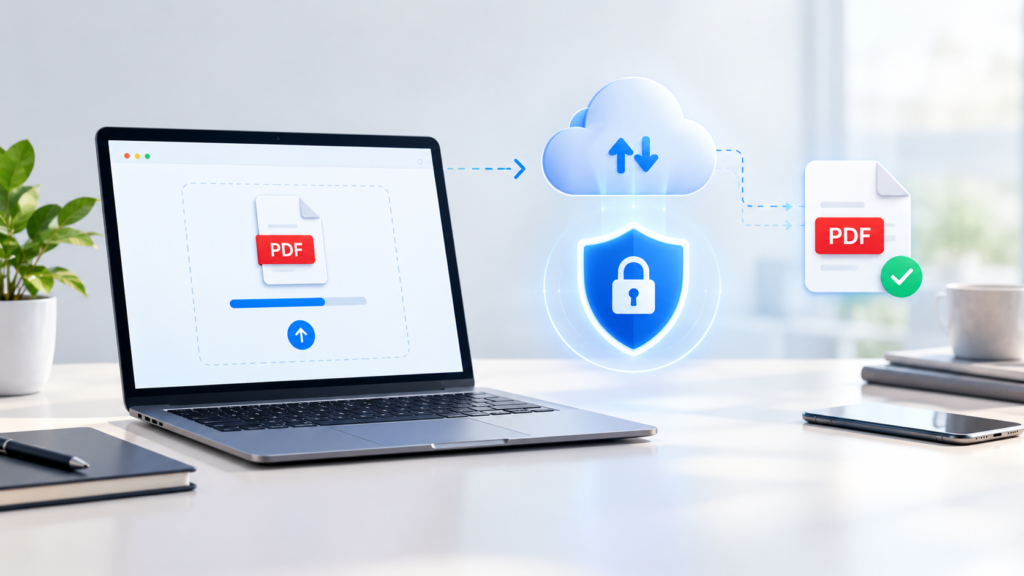
Before uploading a document, consider what information it contains.
Avoid uploading sensitive files to an unfamiliar service without first checking its reputation and privacy practices.
For ordinary, non-sensitive documents, online PDF utilities can be a convenient solution. For documents containing confidential information, consider whether an offline tool would be more appropriate.
You should also be careful with websites that use misleading download buttons, aggressive advertisements, or unexpected redirects.
A professional-looking interface alone does not prove that a service is trustworthy.
Online PDF Tools vs Desktop PDF Software
Online and desktop PDF tools serve different needs.
| Feature | Online PDF tools | Desktop PDF software |
|---|---|---|
| Installation | Usually unnecessary | Required |
| Quick one-time tasks | Convenient | Can be unnecessary |
| Internet connection | Usually required | Often not required |
| Advanced editing | Depends on service | Usually more extensive |
| Large workflows | Depends on limits | Often better suited |
| Sensitive documents | Requires privacy consideration | Can provide offline processing |
| Updates | Usually handled by provider | User/software dependent |
For a quick conversion or compression task, an online utility can save time.
For frequent professional PDF work, advanced editing, or offline processing, dedicated software may be more appropriate.
The important point is to choose based on the task rather than assuming one approach is always better.
Are Free Online PDF Tools Safe to Use?
They can be useful, but safety depends on the individual service and the type of document you upload.
There is a major difference between processing an ordinary public document and uploading a confidential contract containing personal information.
Before using a service, consider:
- Who operates the website?
- Does it explain how uploaded files are handled?
- Does it clearly describe its privacy practices?
- Does it require an account?
- Does it have limits on file size or usage?
- Are you comfortable uploading the particular document?
If the document contains highly sensitive information, an offline PDF application may be a safer workflow.
Frequently Asked Questions
What are free online PDF tools?
Free online PDF tools are browser-based services that perform tasks such as merging, splitting, compressing, converting, editing, and organizing PDF files.
Can I edit a PDF online for free?
Some online PDF services provide free editing or annotation features. The exact features and limitations depend on the individual service.
How can I compress a PDF online?
A PDF compression tool generally lets you upload a PDF, select or apply a compression level, process the document, and download the smaller version.
Always review the resulting file to make sure the quality remains acceptable.
Can I merge PDFs online for free?
Yes, many online PDF utilities provide PDF merging. The available number of files, file size, and other limits depend on the particular service.
Is it safe to upload a PDF to an online tool?
It depends on the service and the document. Before uploading sensitive information, review the provider’s privacy and file-handling policies. For highly confidential documents, consider an offline solution.
Do I need to install software to use a PDF tool?
Not necessarily. Many PDF operations can be performed through web-based tools, although advanced or offline workflows may require desktop software.
What PDF tool should I use for a large file?
If a large PDF is difficult to upload or share, a PDF compression tool may help reduce its size. However, check the service’s upload limits and review the compressed result afterward.
Conclusion
Free online PDF tools can make everyday document work considerably simpler.
Whether you need to merge several files, split a document, compress a large PDF, convert it to another format, or make a quick edit, a browser-based utility can often handle the task without requiring a full desktop application.
The best approach is to start with the exact problem you need to solve and choose a tool that supports that task, accepts your file size, and provides an acceptable workflow.
For ordinary documents, online PDF utilities can be a convenient option. For sensitive documents or advanced PDF work, however, privacy requirements and offline software may deserve greater consideration.
As with any online service, check the tool’s capabilities, limitations, and privacy practices before uploading important files.
All PDF Tools in One Place
Need to work with a PDF without installing software? Explore our collection of PDF tools in one place. You can find useful options for merging, splitting, compressing, converting, editing, and managing PDF files.
Go to PDF Tools → https://pdf.toolpikz.com/
Choose the PDF tool you need, complete your task online, and get your file ready in just a few steps.